
Avidian has an app for Android phones.
You’ll need to set your phone to temporarily turn off the Auto Blocker. Here are the steps.
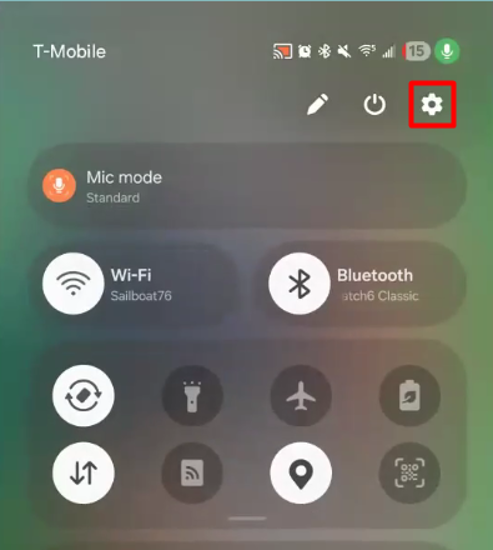
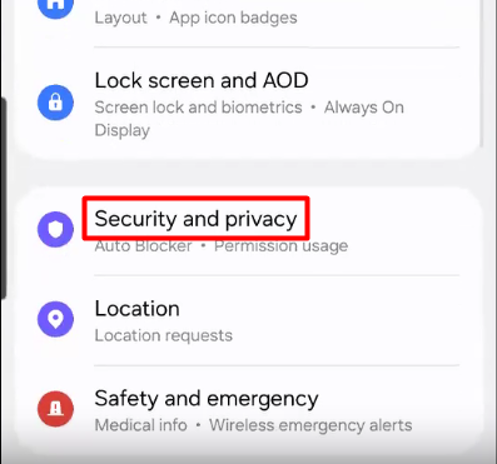
Tap Settings and open “Security and privacy”.
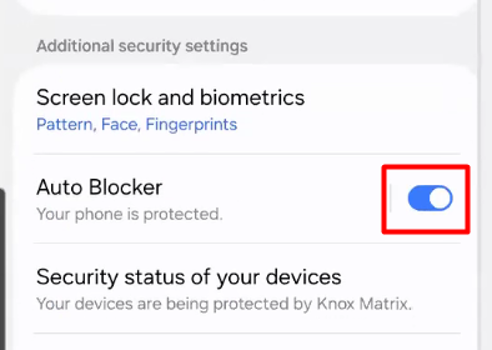
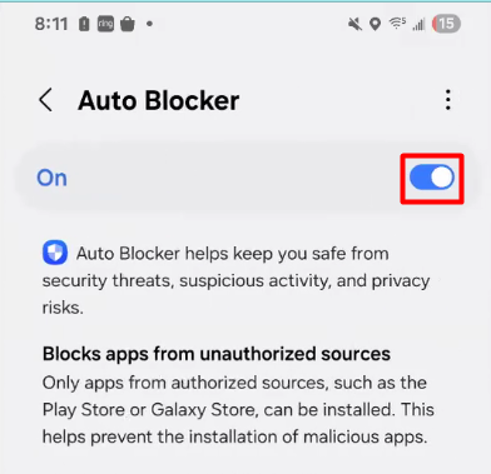
Swipe up to see the Auto Blocker. Turn it off and validate your login if required (no screenshot available).
On your phone, download its installation file, https://www.avidian.com/wp-content/uploads/2026/03/prophet-release-1.63.apk.
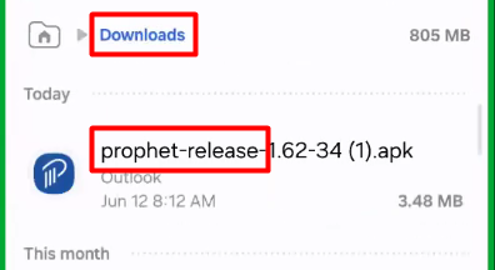
Find the file, probably in My Files > Downloads. Tap it to install it.
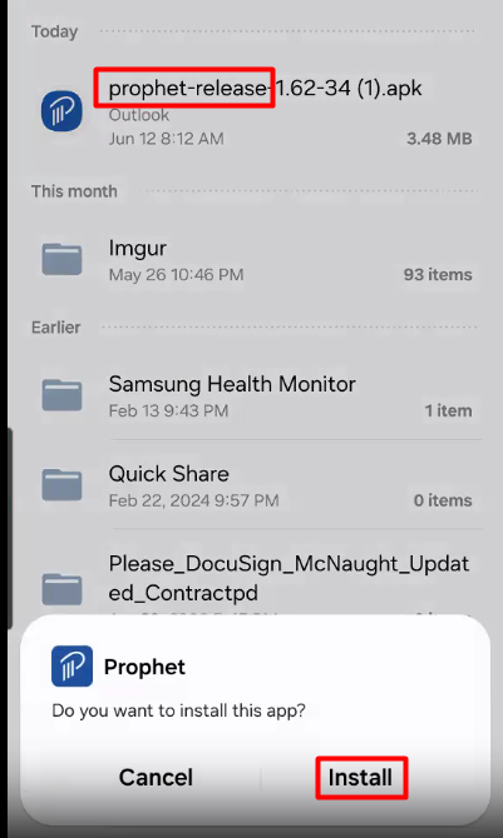
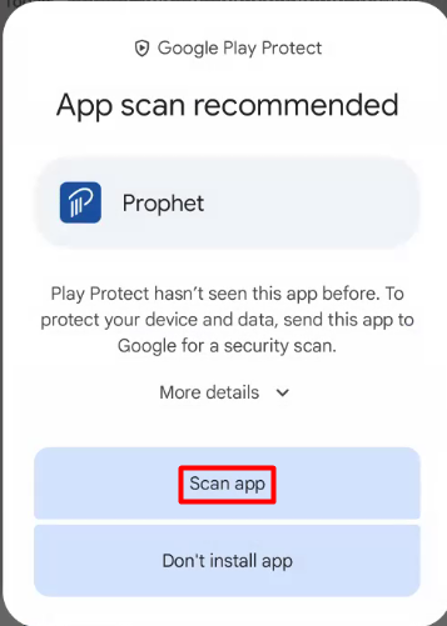
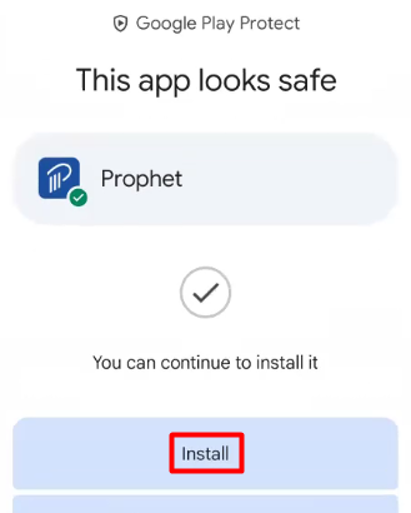
Tab to “Scan app”. Once scanned, tap to Install it.
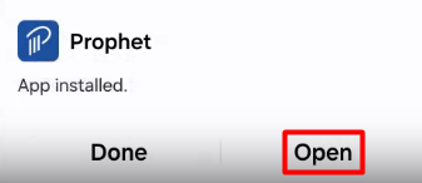
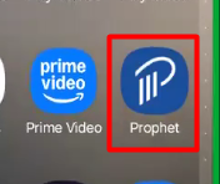
You can open it immediately from the end of the installation. Of find it in your apps.
Support
If you have any trouble going through the steps or would like help, please call Avidian Prophet Technical Support at 855-284-3426 x2.
You can also send email to [email protected] or create a support ticket here.


